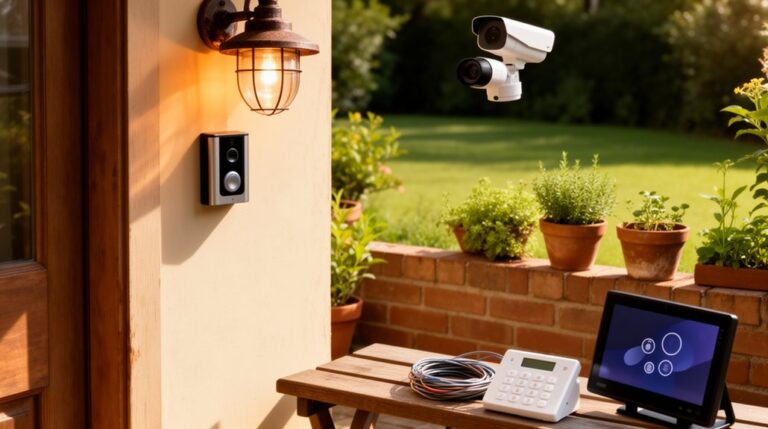

With Alexa, Google, or Siri, you can automate almost every room you live in. Control lights, climate, locks, and TVs with simple voice commands, and create scenes that trigger by time, proximity, or phrases. Set routines to wake up, wind down, or start a movie, plus multi-room audio sync across zones. Secure your setup with privacy checks and robust passwords. Curious about more ways to expand your smart home? You’ll find practical steps ahead.
Key Takeaways
- You can control lighting, climate, locks, and media hands-free using Alexa, Google, or Siri with routines and scenes.
- Multi-room audio, synchronized playback, and voice-activated remote control are key entertainment automations.
- Reminders, alarms, shopping lists, and personal schedules can be managed via simple voice commands and routines.
- Security features include auto-locks, alerts, cameras, geo-fencing, and cross-platform device interoperability.
- Setup involves choosing an ecosystem, testing wake words, configuring privacy settings, and starting with one room.
What a Voice-Controlled Home Can Do for You

A voice-controlled home makes everyday life simpler by letting you manage devices with simple commands. You’ll control lighting, thermostats, locks, and media, all without lifting a finger. Voice recognition lines up with your routines, so scenes fire as you approach or say a trigger phrase. You can set timers, reminders, and shopping lists, keeping errands consolidated in one system. Sleep, wake, and commute modes adjust lights, temperature, and audio to your preferences. Hands-free convenience comes with improved safety: intercoms and doorbells announce arrivals, and security cameras alert you to activity. Yet you should monitor privacy concerns, review app permissions, and disable idle listening when appropriate. Use voice-enabled automation as a practical helper, not a blanket substitute for manual controls.
Choosing Your Primary Voice Assistant
If you’ve set up a voice-controlled home, the next decision is which assistant will handle the bulk of your commands. Choose based on where your devices already reside and which ecosystem you trust for updates, routines, and third-party support. Compare voice recognition across options by testing wake words, response accuracy, and language support in real rooms, not just marketing demos. Consider how each assistant shields data: what’s collected, how it’s stored, and who can access it. Privacy concerns vary by platform, so review settings like microphone permissions, audio recordings, and voice-transfer practices. Practical selection tips: align with your existing apps, prioritize stability over novelty, and pick one that scales with your household’s future needs. Finalize with a clear boundary for identity and automation.
Setting Up Your First Voice Assistant System
To set up your first voice assistant system, start with one room—typically the living area or kitchen—and install the device where you spend the most time. Begin by choosing a primary assistant based on compatibility with your other devices, then connect it to Wi‑Fi and your account. Place it away from loud appliances to guarantee clear pickup and set up voice profiles for household members. Pair essential tools you’ll actually use, such as a smart speaker in the kitchen for quick access to recipes or timers, and a compatible hub for Garden automation tasks. As you grow, add routines that streamline daily tasks without clutter. Explore trusted Kitchen gadgets that integrate smoothly and keep your setup focused and scalable.
Automating Lighting: Scenes, Schedules, Sunrise/Sunset

Scenes, schedules, and sunrise/sunset automation let you shape ambiance and energy use with precision. You’ll set lighting scenes for activities, schedule consistent lighting patterns, and use sunrise/sunset triggers to align with natural rhythms. This approach keeps your home responsive, efficient, and simple to manage with your voice-assisted system.
Scenes For Lighting
Wouldn’t you rather have your lighting adapt automatically to mood and time of day? Scenes for lighting let you preset combos that trigger with a single command. Create “Movie Night” to dim warm lamps, drop brightness on wall accents, and mute ceiling lights. A “Wake” scene gradually brightens as your alarm sounds, syncing with sunrise where available. Use routines that switch scenes at specific times or with voice prompts, so you stay focused on the task, not the setup. Keep scenes simple and reliable; test them after firmware updates. Be mindful of voice privacy and Smart security: limit who can activate sensitive lighting scenes and ensure your hub isn’t exposing exposed routines. Regularly review permissions and scene access.
Schedules And Timing
Schedules and timing extend your lighting automation beyond preset scenes by adding time-based rules and responsive offsets. You’ll create routines that trigger at specific moments—like turning lights on at dusk or dimming before bedtime—without manual input. Use short, clear triggers: “turn on kitchen lights at 6:30 PM” or “activate evening scene at sunset,” and pair them with offsets to adjust for seasonal changes. Rely on delay-based actions, such as gradual brightness ramps, to reduce abrupt progressions. Consider voice privacy when enabling routines; review what a speaker logs and who can access those controls. Check device compatibility across ecosystems to avoid gaps in control. Keep schedules centralized in a hub or app for consistent behavior, and test seasonal tweaks regularly.
Sunrise Sunset Automation
Sunrise and sunset automation ties lighting to natural light cycles so your home adapts as days lengthen or shorten. You can leverage scenes that shift brightness and color temperature automatically, based on clock or location. Use sunrise/sunset data to trigger lights at dusk for entryways, or dim luminance at dawn to ease wakeups without harsh glare. Create schedules that align with seasonal daylight changes, guarantee rooms feel natural year‑round. Voice recognition lets you override or tweak automations on demand, while smart device integration ensures bulbs, smart plugs, and switches respond together rather than in isolation. Keep automations simple: test, label scenes clearly, and avoid conflicting rules. Regularly review energy impact and refine thresholds to balance comfort with efficiency.
Climate Control and Energy Savings With Voice Commands
Smart climate control with voice commands lets you adjust temperature, fan speed, and modes quickly, saving energy without sacrificing comfort. You’ll pair your thermostat with your voice assistant to set schedules, pause cooling or heating, and leverage eco modes during peak hours. Prioritize clear naming for rooms and scenes so commands land accurately, and use routines to automate seasonal changes. Voice privacy matters: review mic sensitivity, mute options when you’re away, and limit data sharing settings to protect personal information. Device compatibility matters too; confirm your thermostat, smart speakers, and hubs support the same ecosystems and standards. Use energy dashboards to monitor consumption, tweak habits, and reduce waste while maintaining comfort. Regular firmware updates help sustain reliability and efficiency over time.
Smart Plugs and Routines for Everyday Tasks
Ever wonder how much convenience your outlets could release? Smart plugs let you automate daily tasks with simple routines. You can schedule coffee makers to start after your alarm or lights to power down when you leave, all without lifting a finger. Choose plugs that support routines across your ecosystem, and group several devices for synchronized scenes. Prioritize voice security by using strong account protection and enabling on-device processing where available. Check device compatibility with your assistant of choice to avoid latency or bringing in extra hubs. Use scenes to coordinate charging, climate, and lighting for efficient energy use. With reliable plugs and clear routines, you gain consistent automation without complexity.
Audio and Entertainment: Multi‑Room Playback and Remotes

Multi‑room playback lets you sync audio across speakers and rooms for seamless listening. You’ll use a voice‑activated remote to switch zones, pause, or adjust volume without leaving the couch. Start by outlining your preferred zones and ensuring your devices are wired or configured for synchronized playback.
Multi‑Room Playback Setup
Establish a seamless multi-room setup by choosing a core audio hub and compatible speakers, then map zones to guarantee synchronized playback and effortless control across rooms. You’ll want a single ecosystem that supports reliable group playback, latency minimization, and simple pairing. Set up a primary speaker or hub as the control point, then assign each room as a distinct zone with clear naming. Configure synchronized playback so the same track, volume, and playback state stay in lockstep. Use robust Wi‑Fi coverage and wired backhaul where possible to reduce dropouts. Enable voice recognition for hands‑free control, but review data privacy settings to limit who can trigger actions and access history. Test routines: start, pause, skip, and volume adjust across zones to ensure consistent responsiveness.
Voice‑Activated Remote Control
Voice-Activated Remote Control lets you manage multi-room playback hands-free, without hunting for apps or remotes. You simply speak commands to your assistant, and it cues the right speaker across rooms, adjusts volume, and switches inputs in real time. With solid voice recognition, you’ll get accurate responses even in busy environments. Set up routines like “all voices to living room” or “bedroom night mode” for seamless handovers. This approach reduces device clutter and speeds up control, so you stay focused on content, not taps. Prioritize compatible hardware and robust network connectivity to preserve responsiveness. Pay attention to sound quality during setup; calibrate equalization and room modes for balanced audio. In practice, you gain convenience, reliability, and centralized command over your home theater system.
Syncing Audio Across Rooms
How do you guarantee seamless, synchronized audio across every room in your home? Start with a single ecosystem for multi‑room playback. Choose a compatible speaker group and assign it to zones you actually use, then verify latency is minimal by playing test music at the same time in each room. Use a reliable hub or smart speaker with a unified app to control volume, play/pause, and track selection from one place. Prioritize stable Wi‑Fi or wired backhaul to prevent dropouts during music discovery sessions. Keep software up to date and enable voice training so commands consistently reach all devices. For best results, curate playlists across zones and test timing regularly, adjusting delays as needed to maintain perfect sync.
Reminders, Alarms, and Personal Schedules by Voice
You can set up reminders, alarms, and personal schedules by speaking, so you don’t have to touch your device. With voice assistants, you place tasks, timers, and calendar events in seconds, and you can adjust them on the fly. Use simple commands like “remind me at 7,” “set an alarm for 6:30,” or “schedule a meeting for tomorrow at 2.” Routines consolidate actions, so a single cue can trigger reminders, alarms, music, and notes. Personal schedules stay synchronized across devices, helping you stay on track without manual input. For productivity, you can link reminders to personalized playlists or a quick note. While you shop, you can reserve quick actions via Voice shopping to keep your day flowing smoothly.
Home Security: Doors, Gates, and Alerts
A robust home security setup starts at the doors and gates, using smart locks, sensors, and alert systems that respond instantly to every breach or access attempt. You’ll pair door sensors with auto-lock schedules and real-time alerts, so you know the moment someone approaches or tampering occurs. Configure geo-fencing and activity logs to distinguish family entry from intrusions, then tailor notifications by location and time of day. Integrate cameras with motion zones to reduce false alerts, and set audible and visible alarms to deter intruders. For interior risk, assign access codes and temporary keys, reviewing permissions weekly. Consider home décor cues that don’t reveal vulnerabilities yet still look welcoming. Practice voice training so commands remain consistent, even in noisy environments, ensuring reliable voice-activated security controls.
Interoperability: Syncing Alexa, Google, and Siri Devices
You want seamless control across Alexa, Google, and Siri, so start with cross-platform synchronization to reduce friction. Use shared device accounts to keep calendars, reminders, and routines in sync, then map unified voice commands that work across ecosystems. This approach sets the foundation for predictable behavior, faster setup, and fewer surprises as you expand your smart home.
Cross-Platform Synchronization
Cross-platform synchronization guarantees your Alexa, Google, and Siri devices work together without friction. You’ll achieve smooth routines, multi‑platform triggers, and unified prompts by prioritizing standard automation verbs, consistent scene naming, and centralized schedules. Guarantee device compatibility across ecosystems by verifying firmware and app permissions, enabling essential integrations, and using official bridges or cloud‑based hubs when needed. Test voice commands that span platforms to confirm reliable recognition and concurrent responses. Expect latency to vary by network quality, so optimize Wi‑Fi and minimize cluttered automations. For privacy, review privacy controls per ecosystem, especially around voice data and local processing options. Maintain clear policies for voice privacy at home, and document user access rules to prevent unintended activations.
Shared Device Accounts
Shared device accounts simplify cross‑ecosystem control by letting all family members access the same switches, routines, and scenes regardless of the voice assistant in use. You’ll encounter device compatibility concerns when linking accounts, so verify that all smart devices support multiple ecosystems and share status updates in real time. Set clear user permissions to prevent accidental changes; assign roles for spouses, guests, and kids as needed. When configuring, keep a centralized control point—prefer a primary hub or account to reduce conflicts. Regularly review access logs to spot anomalies and update passwords after device additions. Expect slight lag during cross‑platform updates, and document any custom routines that span ecosystems. With thoughtful sharing, you maintain seamless automation without sacrificing security or clarity.
Unified Voice Commands
Unified voice commands let you control Alexa, Google Assistant, and Siri devices from a single prompt, without switching apps. You gain interoperability by using cross‑platform routines, shared triggers, and unified wake words where supported. Start with a central hub or a single voice assistant that can route intents to compatible devices, then map commands to each ecosystem’s actions. Be mindful that true cross‑vendor syncing depends on your hardware, apps, and account configuration, so expect occasional limitations. Prioritize device compatibility when selecting speakers, displays, and smart hubs to minimize gaps in control. Always consider voice privacy, reviewing microphone permissions, voice data handling, and opt‑outs. Regularly update firmware and skills, and document fallback commands for devices that don’t fully cooperate.
Privacy Settings You Should Disable (and Why)
Privacy settings matter because they determine what your devices collect and share about you. To protect yourself, disable features that automatically store or transcribe every command. Turn off optional data collection for improve accuracy if you don’t need it, and limit voice recordings to what’s essential for troubleshooting. Review app permissions and restrict third‑party access that isn’t required for core functions. Disable facial or voice recognition prompts where possible, especially on shared devices, to reduce unintended data capture. Regularly purge saved interactions and review your account activity for unfamiliar entries. Understand how data privacy laws apply to your ecosystem and adjust retention periods accordingly. These steps minimize data exposure without compromising core usability, keeping your voice assistants responsive and secure.
Routines That Change Throughout the Day
Routines that change throughout the day aren’t a bug in your smart setup—they’re a feature you can harness. You can tailor scenes to your schedule, shifting lights, music, and reminders as you move from morning to night. Use time-based or context-aware triggers to automate routines that reflect your changing needs, not just fixed presets. For example, trigger a calmer routine when you start winding down or a focused routine before work hours. Be mindful of voice privacy; limit who can trigger sensitive actions and review permissions during progressions. Check device compatibility across your hubs to avoid gaps when you add new speakers or cameras. With thoughtful timing and reliable integrations, your routines stay relevant without dragging down performance.
Quick Wins: Voice Automation You Can Do in 10 Minutes
If you’re short on time, start with quick setup tricks to get a response fast and feel productive in minutes. Then you’ll shape a few simple scenes or routines and test them with toggle or voice commands to see how they flow. Finish by timing each routine and adjusting triggers so you get reliable results without overcomplicating the setup.
Quick Setup Tricks
Setting up quick voice tricks is easier than you think: you can wire up basic voice automation in about 10 minutes and start controlling lights, music, and scenes right away. You’ll gain momentum fast by focusing on a single room, using your smart speakers, and keeping routines simple. Prioritize privacy by reviewing basic voice privacy settings and disabling unused features. Choose a reliable, compatible hub, then add a few core commands that feel natural to you. Test responsiveness, calibrate wake words, and confirm that commands map to the right devices. Keep a short log of what works best, so you can scale later with confidence.
- Quick device grouping for one room
- Simple wake-word checks and adjustments
- One-command control for lights and music
- Basic routine: “good morning” or “good night”
- Privacy-aware setup steps for smart speakers
Scene Or Routine Creation
You don’t need a full setup to start powerful automations. Scene or routine creation lets you trigger multiple actions with a single command. Start simple: a good morning routine that turns lights to a warm scene, raises blinds, and starts a news briefing. Name the scene clearly so voices stay consistent across devices. Keep conditions strict—avoid ambiguous prompts, or you’ll fight misfires. Use your preferred platform’s app to sequence actions, test with a quick command, and adjust delays for smooth progressions. Be mindful of Voice recognition quirks: training a few phrases improves accuracy, reduces false triggers. Also consider Privacy concerns: limit which devices participate, review which apps can access your routines, and disable unused integrations. With clear commands and mindful permissions, routines save time without leaking control.
Routine Timing Tips
To get quick wins, tune your routines for precise timing rather than sheer breadth. You’ll maximize reliability by aligning actions to trustworthy triggers, not broad windows. Focus on what happens just before and after each event, and test in real-world conditions. Use smart sensors to confirm presence, motion, or ambient changes before actions fire, reducing false positives. Invest in voice calibration so commands and automations trigger consistently across devices. Short, predictable sequences beat long, complex ones, especially when devices wake from sleep or switch networks. Document timing expectations for each scene, then adjust defaults based on feedback.
- Verify trigger-to-action latency with real-world tests
- Align sensor checks to minimize false positives
- Calibrate voice responses for each room
- Create time windows that reflect routine habits
- Use compact, dependable sequences over layered automations
Troubleshooting Common Voice Assistant Hurdles
Voice assistants can stumble on common tasks, so start with the basics to quickly isolate issues. You’ll first verify wake words and network status, then check device permissions and account links. Confirm the microphone isn’t muted and that the speaker isn’t overwhelmed by background noise. If commands fail, rephrase or simplify the request, and test with a straightforward command. Review your app or hub’s routine logic for conflicts or overlapping routines that could hijack responses. For Voice recognition, assess whether accidental activations or misinterpretations occur, and retrain voice models if supported. Be mindful of privacy concerns: disable unnecessary data sharing, review activity logs, and adjust privacy settings before broadening device access. If problems persist, reset connectivity, then reintroduce devices one by one to pinpoint the hurdle.
Security Best Practices for a Voice‑Controlled Home
Security for a voice‑controlled home hinges on strong, practical defaults you set up now. You’ll lock down devices, change default passwords, and enable multi‑factor authentication where available. Regularly review connected skills and routines, removing any you don’t recognize. Use guest access limits and door‑sensor integrations to reduce exposure. Keep software updated, and disable unnecessary microphone access on idle devices. Separate home networks for IoT and personal devices minimizes risk. Consider physical privacy covers and mute controls when not using sensitive features. Finally, integrate practical routines that minimize data sharing, like avoiding sensitive vocal commands near guests. Kitchen gadgets and Gardening tips can illustrate secure automation without exposing credentials to unintended apps.
- Use unique, strong passwords and MFA for all accounts
- Review and disable unused skills, routines, and devices
- Separate networks for IoT and personal devices
- Enable privacy shims (mute, mic off) and firmware updates
- Limit data sharing in routines and avoid sensitive phrases
Budget-Friendly Upgrades to Expand Your System
Upgrading your system on a budget means prioritizing affordable, impactful adds that boost capability without expanding risk. You’ll gain tangible improvements by pairing smart hubs with compatible devices, choosing plugs, sensors, and routines that streamline daily tasks. Start with inexpensive, well-supported devices—motion sensors, smart bulbs, and energy monitors—that integrate into existing ecosystems without cluttering your setup. Focus on reliability and privacy as you expand; avoid overloading routines or automations that rely on unstable connections. Practical upgrades include automating lighting scenes, ambient temperature adjustments, and reminders that sync with your calendar. To broaden usefulness, weave in simple, actionable ideas like Gardening tips and Cooking recipes to inspire mood and routine enhancements. Keep documentation handy, update firmware, and test each addition before scaling further.
Quick-Start Checklist to Launch Your Voice Home Today
Getting your voice-controlled home up and running quickly means setting a clear, minimal foundation—focus on a reliable hub, a handful of compatible devices, and straightforward routines you’ll actually use. Start with a central smart speaker or display, verify it’s updated, and enable guest and voice authentication features. Pick essential devices (lighting, climate, or security) and confirm compatibility. Create simple routines like “Good morning” or “Away” that trigger multiple actions. Prioritize security: enable Voice authentication and set strong, unique passwords where available. Use data encryption for cloud connections and keep software current. Test commands regularly to validate responses and update as needed.
- Choose a compatible hub
- Enable voice authentication
- Verify device compatibility
- Create core routines
- Enable data encryption
Frequently Asked Questions
Can I Control My Thermostat With Multiple Assistants Simultaneously?
Yes, you can. With a multi assistant setup, you’ll enable simultaneous control of your thermostat, but you may experience minor conflicts. Guarantee compatibility, use preferred routines, and prioritize one assistant as the primary controller for reliability.
How Secure Are Voice Profiles for Different Household Members?
Voice recognition varies; profiles are generally secure but not perfect. You’ll want strong, unique voices and multi-factor checks for critical actions to boost Household security while you enjoy smooth automation.
Can I Automate Voice Routines Without Wi-Fi Access?
Yes, you can: opt for offline functionality and local automation, so routines run without internet. You’ll control compatible devices directly on-device, keeping actions fast, private, and reliable even when Wi‑Fi drops.
Do I Need a Hub for Cross-Platform Device Compatibility?
No, you don’t strictly need a hub; just pick devices that support smart speaker integration and emphasize cross platform compatibility. You’ll streamline setups, reduce fragility, and enjoy seamless automation across your preferred voice assistants.
Are There Privacy-Friendly Alternatives to Cloud Voice Services?
Yes, you can. Use devices that store local data and offer robust privacy controls, avoiding cloud-only services. You’ll keep your information on-device, control permissions granularly, and review activity logs to protect privacy while still automating tasks.
Conclusion
You’re building a chorus in your own home, where every command nudges the lights, climate, and mood into harmony. Don’t chase perfection—start with one verse, then add refrains. Prioritize reliability over every shiny feature, secure every doorway, and keep your budget in check. As you learn, the system isn’t just smart—it becomes your second instinct, a silent ally turning habits into ease. When it hums, you’ll hear not machines, but a well-tuned life.
About the Author