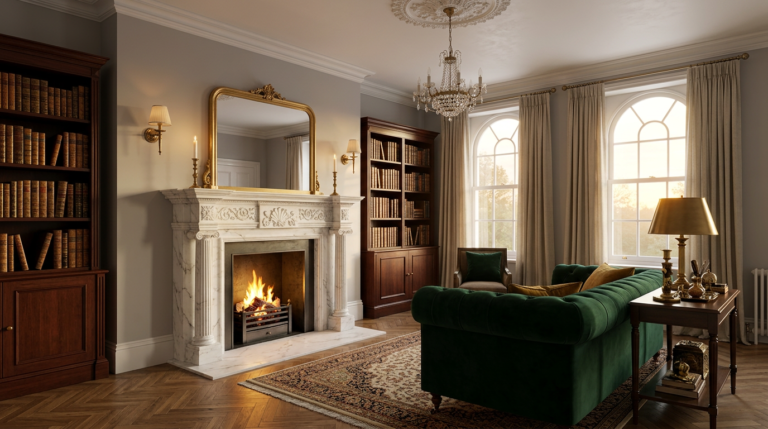
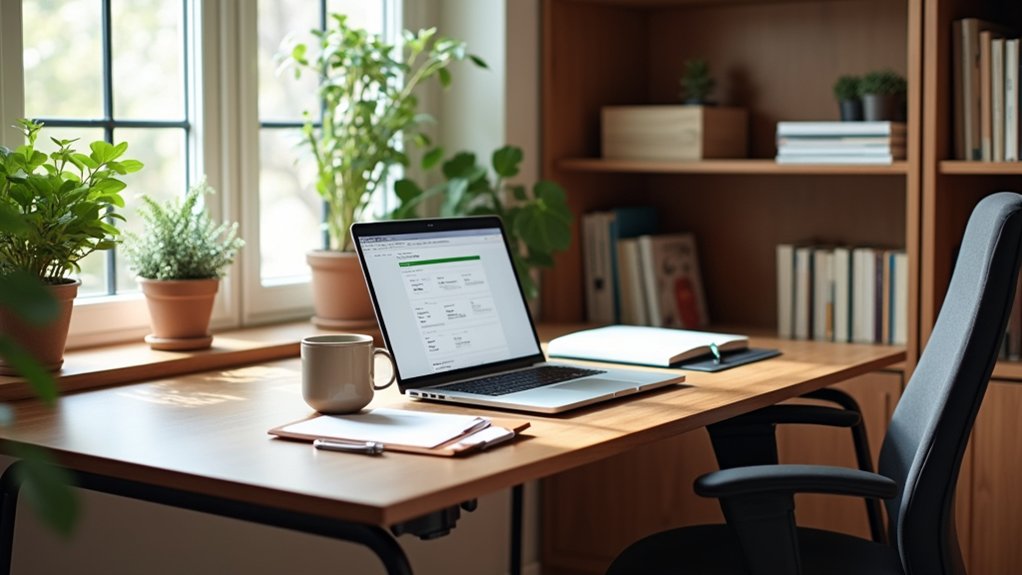
To design a functional home office, start with a clear goal and space assessment: know your tasks, deadlines, and workflow, then map size, light, outlets, and traffic flow. Choose a primary layout—desk-centric for focus or multi-use for flexibility—and set distinct zones for focus, collaboration, and breaks. Prioritize ergonomics with proper chair height, monitor level, and desk height; use smart storage to cut clutter. Add flexible, mobile furniture and subtle eco-friendly touches. You’ll gain access to ongoing efficiency as you progress.
Key Takeaways
- Define clear goals and assess your space to tailor a plan that supports your core tasks and workflow.
- Design dedicated zones for focus, collaboration, and breaks with visual cues to reduce clutter and distractions.
- Prioritize ergonomic setup: monitor height, chair comfort, keyboard position, and appropriate desk height.
- Optimize lighting, color, and sound with layered ambient/task lighting, calm hues, and acoustic improvements.
- Plan for storage, cable management, and scalable tech power needs to keep workflows organized and uninterrupted.
Define Your Home Office Goal Up Front
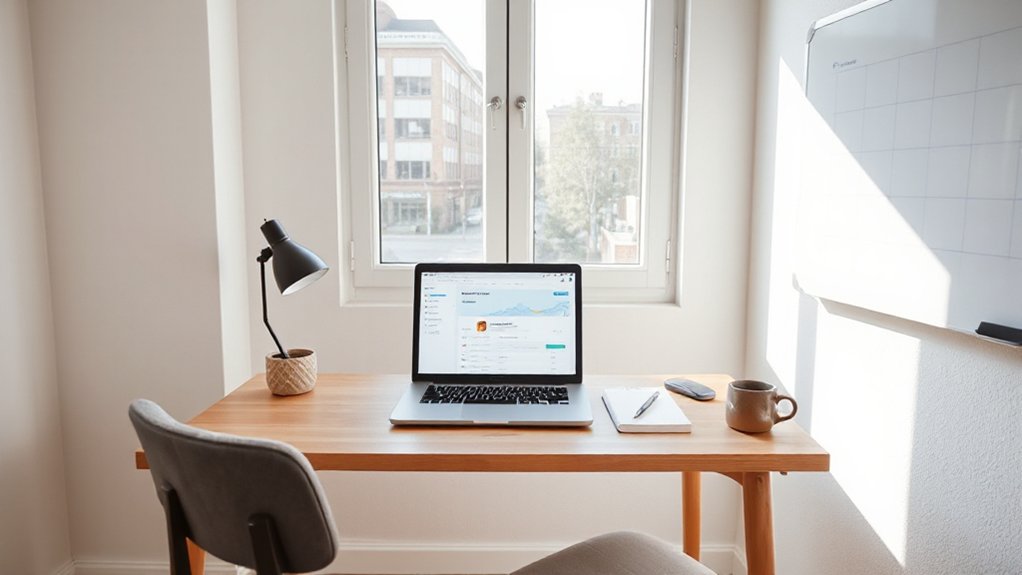
To define your home office goal up front, start by identifying the exact work you’ll do there and the outcomes you expect. Clarify core tasks, deadlines, and deliverables, then translate them into a tangible workspace purpose.
Map your priorities: essential tools, reliable connectivity, and a workflow that minimizes friction. Establish how success will be measured—time saved, accuracy improved, or project velocity.
Align furniture, storage, and technology with those metrics to prevent scope creep. Consider how decorative accents will support focus without distraction, and plan where plants and greenery fit to boost mood and air quality.
Document this goal in one concise statement you can reference when designing zones, choosing equipment, and allocating budget. Revisit periodically and adjust as your needs evolve.
Assess Your Space: Size, Shape, and Natural Light
Assess your space by sizing up the room, noting its shape, door and window locations, and available outlets. You’ll map usable floor area and consider traffic flow, so you don’t trap yourself behind doors or furniture.
Next, evaluate natural light: track sun angles through the day, identifying glare risks and the need for window treatments. Favor a layout that preserves a comfortable work zone with stable lighting—ideally near a window without direct glare.
Consider walls for wall art and decorative accents that reinforce focus without visual noise. Measure ceiling height to determine shelving options and vertical storage.
Confirm outlets and network access align with your planned equipment. In short, knowing dimensions, light, and access helps you design a practical, distraction-minimized workspace.
Pick Your Primary Layout: Desk-Centric or Multi-Use
Choosing your primary layout sets how you balance tasks and space. If you go desk-centric, weigh the pros and cons like focus vs. potential clutter, and plan for efficient workflow.
If you opt for multi-use, map quick shifts and flex spaces that support work, study, and calls without slowing you down.
Consider space and flow first, then apply targeted tips for flexibility and purpose, so your setup supports both productivity and comfort.
Desk-Centric Pros And Cons
A desk-centric layout concentrates your work surfaces and storage, making it simple to keep everything you need within arm’s reach. You gain immediacy for focused tasks, but footprint can limit collaboration and natural light if space is tight. Consider how you’ll balance storage with circulation to avoid clutter. The approach supports efficient workflows when you pair it with ergonomic accessories and a clean, intentional setup.
- Maximized reach for essential tools and documents
- Streamlined cable management and fewer distractions
- Easier task-switching with dedicated work zones
- Stronger potential for personalized organization systems
- Subtle emphasis on aesthetics through decorative accents
In this layout, invest in durable, adjustable components and deliberate placement to sustain productivity.
Multi-Use Flexibility Tips
To tailor a workspace that works across layouts, you’ll want flexible zones that adapt to both desk-centric intensity and multi-use collaboration. Prioritize modular storage and seating that reconfigures without tools, so you can switch from focus to group work in minutes.
Choose multi-use furniture that folds, nests, or expands; a compact desk can become a drafting table, and a mobile pedestal can act as an additional surface or seating.
Define zones with portable screens or rugs to cue function without wall rigidity. Invest in a height-adjustable surface and lightweight chairs to support varied postures.
Maintain a central charging hub and cable management so devices stay ready for any task. The result is a flexible workspace that scales with your needs and avoids clutter.
Space And Flow Considerations
When designing space and flow, start by mapping how you move through the room and where you’ll actually work. Choose a primary layout: desk-centric or multi-use, then align furniture with traffic paths to minimize interruptions.
Prioritize natural light, acoustic zones, and accessible storage to sustain focus. Use decorative accents to cue zones without clutter, and apply color psychology to influence mood and productivity.
Maintain clear surfaces and a unified palette for coherence, while allowing a subtle contrast to delineate tasks. Plan power outlets, cable routes, and ventilation to prevent bottlenecks.
Regularly reassess as needs change to preserve efficiency and comfort.
- Define zones with purposeful decor accents that don’t overload walls
- Position the desk for ideal sightlines and daylight
- Route cables neatly and discretely
- Layer lighting to support tasks and mood
- Test flow and adjust color cues as needed
Ergonomics 101: Chair, Desk, and Monitor Height
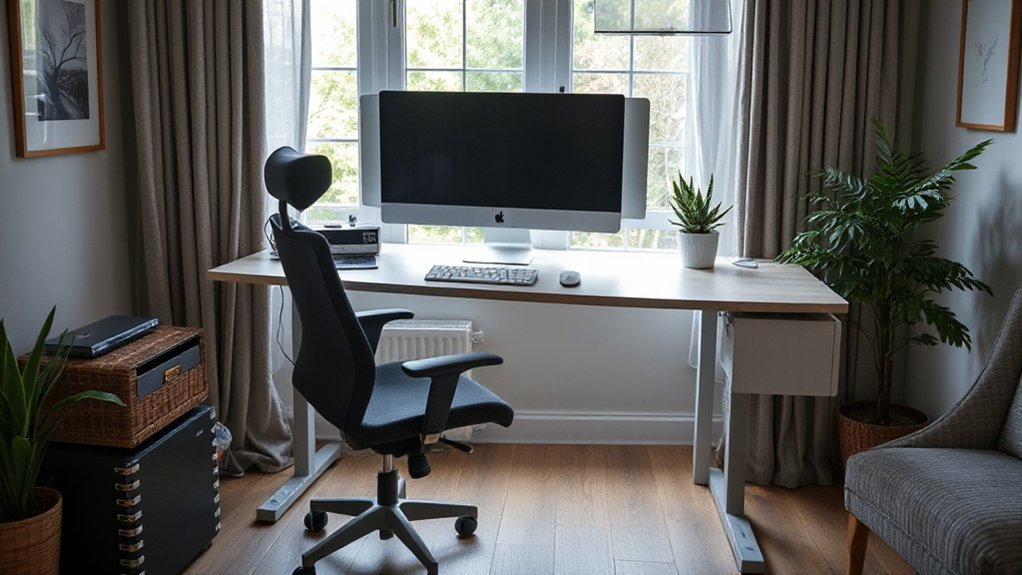
Start with chair height that lets your feet flat and knees bent about 90 degrees, so your thighs stay supported without pressure on the back of your legs.
Set desk height so your forearms rest parallel to the floor with wrists neutral, keeping shoulders relaxed and elbows near your sides.
Position your monitor so the top line is at or slightly below eye level and about an arm’s length away to reduce neck strain while keeping a natural head posture.
Chair Height Basics
Sitting with the right chair height matters as much as choosing the right desk or monitor. You’ll optimize comfort and reduce strain by aligning your hips, knees, and ankles in a natural posture. Set your seat so feet rest flat, thighs parallel to the floor, and elbows close to your body.
Use adjustable features to fine‑tune height, tilt, and lumbar support, ensuring your spine maintains an ergonomic posture throughout tasks. Avoid hunching or reaching for input devices; keep wrists straight and hands close to keyboard level.
Check monitor eye line remains slightly below eye level when seated. Prioritize stability and ease of movement with a chair that supports sustained focus and reduces fatigue. Your setup benefits from intentional, repeatable adjustments.
- Ergonomic posture foundations
- Adjustable features for precision
- Thresholds for hip and knee angles
- Wrist, arm, and monitor alignment
- Quick‑adjust check routine
Desk Height Guidelines
Desk height sets the foundation for a comfortable, efficient workflow. You should align your chair height so your elbows rest at about 90 degrees, with forearms parallel to the desk surface.
The desk height itself often falls within 28 to 30 inches for most users, but adjust to suit your body proportions and chair. Prioritize a surface that supports good posture without glare or crowding.
Keyboard ergonomics matter: place the keyboard so wrists stay straight and hands hover above the keys, reducing strain during long sessions.
When evaluating desk material options, consider stability, edge comfort, and resistance to wear; solid wood, laminate, and metal variants each influence height consistency over time.
Aim for a setup you can sustain for hours.
Monitor Eye Level
Aim for the monitor to sit at eye level, so your gaze is natural and you don’t tilt your neck. When you set Monitor height to match eye level, you reduce neck strain and promote steady posture.
With the monitor properly aligned, you’ll experience clearer focus and fewer headaches, even after long sessions. Keep the top of the screen near eye level and about an arm’s length away for maximum clarity.
- Align monitor height with eye level for neutral neck position
- Place top of screen at or slightly below eye line
- Maintain about an arm’s length distance
- Use a stable stand or adjustable arm for fine-tuning
- Reassess after changes to seating or desk height
Choose Storage That Reduces Desk Clutter
Choose storage that reduces desk clutter by keeping only what you actually use within arm’s reach. You optimize space by grouping essentials into dedicated zones: a small tray for pens, sticky notes, and USB drives; a slim vertical file or binder for documents you reference weekly; and a compact drawer for charging cables and adapters.
Prioritize decor organization that supports function, not display. Use vertical storage to free desktop surface: wall-mounted shelves, a slim hutch, or tall towers stacked with labeled bins. Choose containers with clear fronts or color coding so you can see contents at a glance.
Regularly audit items, remove duplicates, and rotate tools seasonally. Keep frequently used items near you; unrelated items belong elsewhere to sustain a clean, efficient workspace.
Cable Management That Actually Stays Hidden
Hidden cable concealment starts with smart route planning, so you can keep power—and the look—clean. Place the power strip where it’s reachable yet out of sight, and route cords along the desk edge or wall channels to minimize visibility.
We’ll explore practical layouts for desk cable routing that balance accessibility with a tidy, hidden setup.
Hidden Cable Concealment
To keep cables out of sight and out of the way, plan a dedicated path for every run and secure it early in the project. Hidden cable concealment means you map routes behind walls, under floors, or inside cable raceways, so wires stay invisible yet accessible for upgrades.
Use seamless grommets, recessed channels, and cable trays that blend with the décor. Prioritize wire hiding with color-matched covers and minimal bends to reduce wear and heat buildup.
Label each run at both ends for quick changes without exposing clutter. And test access points during construction to prevent future pokes or tugging.
- Plan a dedicated, labeled route for every cable
- Use recessed channels or raceways that blend in
- Choose color-matched covers for discreetness
- Limit bends to reduce wear and heat
- Verify access points during install
Power Strip Placement
Ever wondered how to keep power strips out of sight without sacrificing access? Place the strip under a desk lip, along a wall cavity, or inside a shallow in-desk tray so outlets stay usable without drawing attention.
Choose a model with surge protection and multiple outlets, and mount it securely to prevent wobble.
Route cables behind furniture using adhesive clips or cord channels, keeping the strip near power sources but out of walking paths.
Label circuits if you have diverse devices to simplify troubleshooting.
Keep heavy loads off the same strip to reduce heat buildup, and use a strip with a built-in resettable breaker.
Regularly inspect for wear, and replace damaged units promptly to maintain electrical safety.
Desk Cable Routing
Cable routing that actually stays hidden starts with a clear plan: map where each device plugs in, then segment runs so cords never cross high-traffic areas. You streamline by choosing a single conduit path from desk to outlet, minimizing visible cable length and using cable insulation to protect pins and adapters.
Use under-desk trays to suspend power and data separately, reducing interference. Consider a centralized power strip with surge protection, so a power surge doesn’t cascade through peripherals.
Label each cord for quick adjustments, and batch connections by zone for future updates. Hide excess length in wall channels or cable raceways with slim profiles to maintain a clean look and safe airflow.
- Plan routes before buying
- Separate power and data
- Use under-desk trays
- Label cords clearly
- Hide excess in raceways
Task Lighting for Focus and Readability
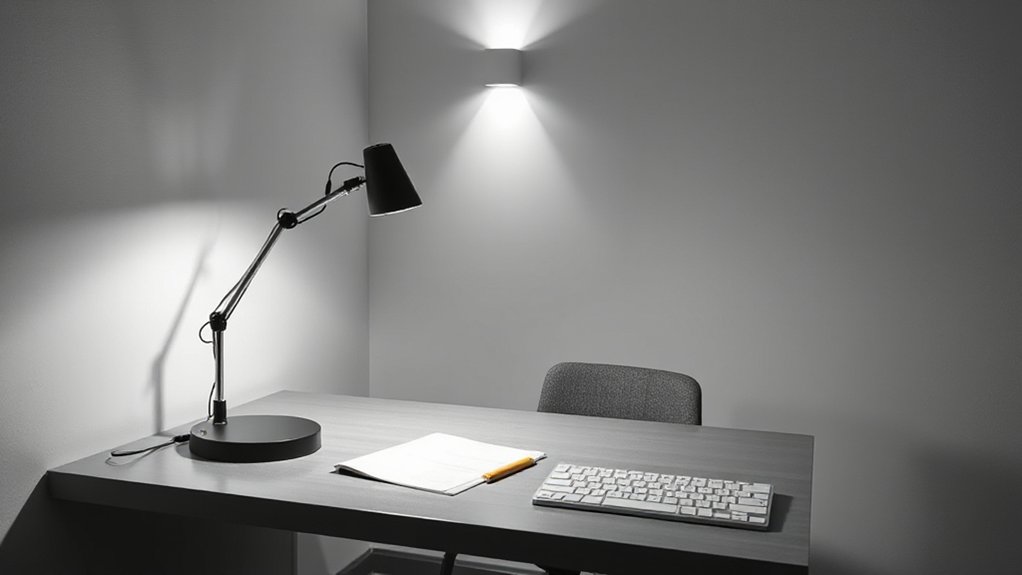
Effective task lighting helps you focus and read without eye strain. You’ll want a combination of ambient illumination and task-specific lighting that supports long work sessions.
Place a primary light source to reduce shadows on your desk, then add a directional lamp for detail work. Prefer neutral or cool color temperatures (3500–4200K) to preserve contrast and reduce fatigue.
Position lamps so glare on monitors is minimized and your eyes don’t have to continuously refocus. Use dimmers or layered lighting to adapt to tasks and time of day.
Choose fixtures with solid color rendering and adjustable arms to tailor intensity and angle. Avoid relying on a single overhead light; balance brightness with shadows for consistent readability.
Color Schemes to Boost Focus and Calm
Calming hue combinations set the tone without overwhelming, helping you sustain focus throughout the day.
Pair soft neutrals with strategic accent colors to create calm while preserving clear visual cues for quick task-switching.
Use high-contrast elements for legibility in your layouts to reinforce focus without fatigue.
Calming Hue Combinations
A calming, focused workspace relies on color palettes that reduce visual noise while signaling productivity. You’ll leverage calming hues that align with color psychology to support steady attention, fewer distractions, and quicker progressions between tasks.
- Use soft neutrals with gentle accents to maintain clarity without visual fatigue.
- Pair cool greens with warm wood tones to balance energy and calm.
- Apply muted blues for serenity, especially in long tasks or writing.
- Introduce subtle lavender or gray-violet hints for focus without overstimulation.
- Implement light-filled walls or task lighting to preserve brightness and reduce strain.
Calming hues guide perception, helping you work longer with less stress. Color psychology informs choices, ensuring your office feels intentional, not impulsive.
Focus-Enhancing Contrast
Contrast isn’t just about color—it’s about legibility and pace. You’ll use focused contrast to improve readability and cue visual flow.
Start with a dominant neutral workspace base, then introduce deliberate accent distinctions to guide attention without glare. Use contrast techniques like dark text on light desks, or light text on dark backgrounds for critical information, keeping saturation restrained to prevent distraction.
Pair high-contrast elements with softer surroundings to maintain calm, not strain. Reserve bold contrasts for UI panels, calendars, and task lists, so you can scan quickly and stay in the zone.
Guarantee equal lighting across surfaces to avoid eye-shift fatigue. This approach sharpens visual focus, reduces cognitive load, and sustains steady work momentum throughout your day.
Sound Control for Better Concentration
Sound control is essential for steady focus, so start by identifying the sounds that disrupt you and solutions that curb them. You’ll gain momentum by isolating noise sources, then applying targeted fixes.
Prioritize quiet zones, selective amplification of beneficial sound, and routine assessment of your space. Use proven methods to reduce intrusion without sacrificing comfort.
Implement practical steps that address permanence and variability, from permanent renovations to movable adjustments. Focus on the impact of sound on concentration, then tailor adjustments to your workflow.
Incorporate proven techniques like strategic material choices and layout tweaks to optimize acoustics.
- Soundproofing techniques
- Acoustic panel placement
- Door and window seals
- Floor underlay options
- Soft furnishings for absorption
Essential Tech for a Seamless Workflow
To keep your workflow seamless, make certain you have robust wireless connectivity, reliable cables, and steady power—these essentials prevent interruptions and data loss.
Prioritize seamless wireless access, smart cable management, and dependable power solutions that adapt to your daily tasks.
With a focused setup, you’ll reduce friction and stay productive from first click to final save.
Seamless Wireless Connectivity
Seamless wireless connectivity is the backbone of a productive home office, enabling you to move between devices, apps, and meetings without interruption. You’ll optimize coverage, reduce dropouts, and maintain bandwidth where you work most.
Prioritize stable Wi Fi security to protect sensitive data while you’re online. Consider signal boosters to expand reach to remote corners of your space, ensuring consistent performance.
Deploy a simple network map, label SSIDs, and segment devices by usage to minimize congestion. Regularly monitor speeds and adjust channel settings to stay ahead of neighbors’ interference.
Keep firmware up to date and test latency during peak hours. A thoughtful setup reduces friction, so you stay focused.
- Assess coverage gaps and place boosters strategically
- Use strong, unique Wi Fi security credentials
- Segment devices by function to prevent bottlenecks
- Schedule periodic speed tests
- Update firmware and monitor channels routinely
Efficient Cable Management
Ever wondered how tidy cables boost focus and speed up work? Efficient cable management keeps your workstation uncluttered and predictable. You’ll reduce distractions by routing cables, wiring along clean paths, using under-desk trays or wall-mounted channels.
Start with a simple plan: group power, data, and auxiliary cables separately, label each run, and cap excess length to prevent snags. Opt for vertical or horizontal cable organizers that match your desk depth and leg clearance.
Favor low-profile ties, Velcro, and self-adhesive clips to minimize bulk. Maintain accessibility for occasional swaps, but minimize windings behind monitors. Regular checks prevent creeping tangles.
A disciplined approach saves minutes daily, reduces overheating risk, and preserves a professional, high-efficiency aesthetic.
Robust Power Solutions
A clean cable setup sets the stage, but a robust power solution keeps your workflow uninterrupted. You optimize uptime with reliable components and smart planning that protect devices and data.
Prioritize surge protection, stable outlets, and sufficient amperage to handle your gear without overload. Wireless charging is convenient, but guarantee its placement doesn’t lure you into energy-footprint risks or heat buildup.
Use a quality surge protector with spaced outlets and USB-C PD ports for fast, organized recharging. Pair a backup option, like a portable power bank or UPS, for critical moments.
Label circuits and monitor heat, so you catch issues before they affect performance. A thoughtful power setup minimizes downtime and keeps focus.
- Surge protection with outlets and USB-C PD
- UPS or portable power bank for critical gear
- Wireless charging placement and heat awareness
- Proper outlet amperage and circuit labeling
- Regular checks and heat monitoring
Budget-Friendly Upgrades That Move the Needle
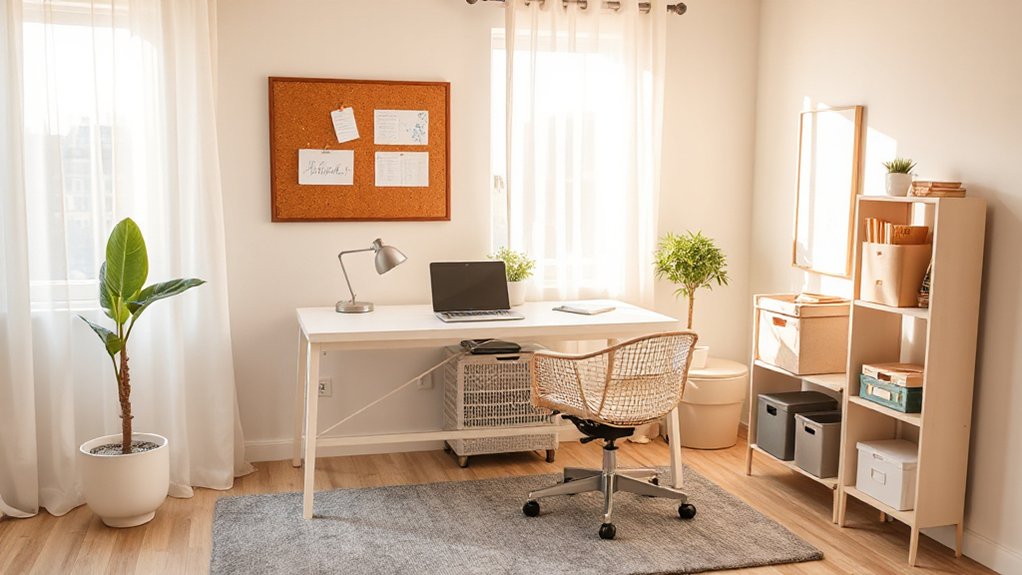
If you want meaningful gains without blowing your budget, start with simple, high-impact upgrades that affect daily use. You’ll release better comfort and focus by tweaking what you already own and investing in a few smart, inexpensive additions.
Prioritize ergonomics: a chair with proper lumbar support, a monitor at eye level, and a desk height that keeps wrists neutral.
Improve lighting with Vintage lighting choices that reduce eye strain and boost mood, not just decor.
Elevate air quality and greenery with Indoor plants placed where you work most; they’re low-cost, high-return air purifiers and visual cues for routine breaks.
Organize cables, declutter surfaces, and standardize a small, repeatable setup for faster, calmer mornings.
These moves compound weekly, with minimal spend.
Create Zones for Focus, Collaboration, and Breaks
Creating distinct zones for focus, collaboration, and breaks helps you work smarter, not harder. You’ll allocate a quiet corner for deep work, a collaboration nook for quick meetings, and a lounge-ish break space to reset.
Use visual cues to reinforce purpose: low-distraction lighting for focus, a whiteboard or digital screen for teamwork, and comfy seating for rest. Integrate Indoor plants to improve air quality and mood, and add decorative art to define character without noise.
Position zones close enough for flow, but separated by rugs, screens, or plants to signal intent. Keep clutter off work surfaces and rotate decor to maintain energy.
- Quiet focus area with minimal tech
- Collaboration zone with accessible whiteboard
- Break space for quick rests
- Indoor plants placement balance
- Decorative art as subtle separators
Two-Person Work Areas: Designing a Shared Desk Setup
Sharing a desk for two works best when each person has a defined zone and clear workflow—good sightlines, balanced access to power, and enough personal space to avoid overstepping.
You’ll optimize space by placing monitors side by side with adjustable arms, aligning chairs to preserve collaboration without crowding.
Implement shared desk ergonomics by choosing a height-adjustable surface and a unified keyboard tray to reduce reach, plus footrests for comfort.
Divide tasks visually with subtle zones: primary work area for each person, a small shared reference spot, and accessible power hubs near each seat.
Maintain a clean workflow with a simple cable management system and consistent lighting.
This approach supports Collaborative workspace design, keeps interaction smooth, and minimizes interruptions while sustaining productive focus for both users.
Personalize Without Clutter: Practical Accessories
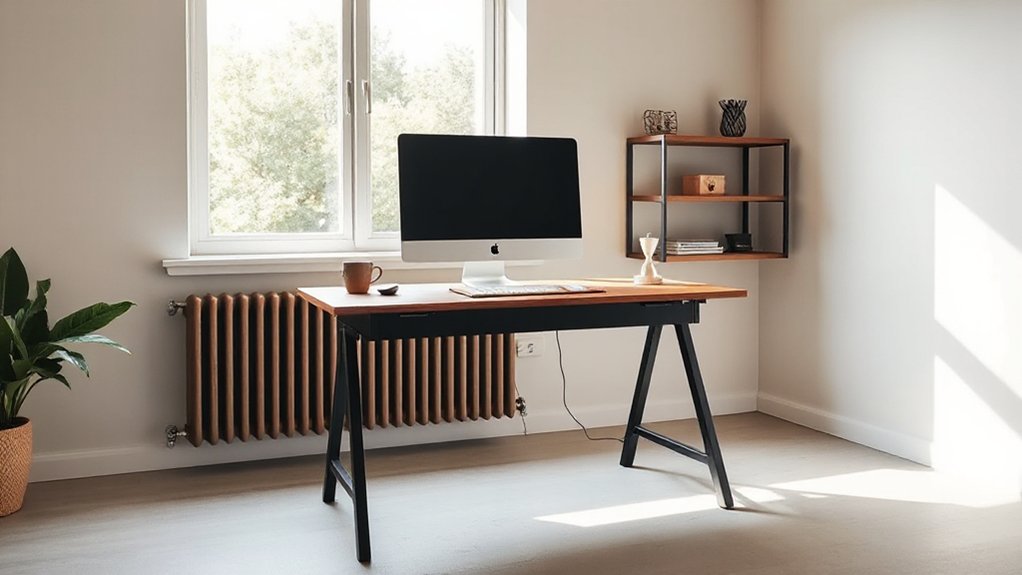
Personalize without clutter by selecting practical accessories that support focus and flow. You shape a streamlined workspace by using purposefully chosen items that reinforce your routine without overwhelming surfaces. Prioritize functional decor that communicates your style while remaining task-oriented, avoiding novelty clutter. Keep decorative accents in moderation, ensuring each piece has a specific role and placement.
Choose tools that reduce friction, like labeled storage, cable management, and quick-access trays. Integrate personalized decor that signals mood and motivation without distraction. Favor tactile textures and subtle color accents that improve concentration. Maintain a consistent aesthetic so items feel purposeful, not decorative for decor’s sake.
Your desk becomes a calm, efficient hub where intention meets productivity.
- Clear storage trays for essentials
- Cable management kits
- Quick-access document tray
- Minimal framed art with meaning
- Subtle color accents and textures
Durable, Eco-Friendly Materials for a Longer-Lasting Office
Durable, eco-friendly materials deliver long-term value by balancing performance and responsibility. When you select components for your workspace, prioritize materials with proven longevity, repairability, and low embodied energy.
Choose solid, sustainably sourced woods or bamboo for desks and storage, finished with non-toxic seals to minimize off-gassing. Opt for metal hardware with recycled content for durability and reduced waste.
For seating, eco-friendly furniture options should combine ergonomic support with durable upholstery and dye processes that curb pollutants.
Flooring can rely on reclaimed materials or rapidly renewable options like cork or linoleum with water-based coatings. Apply sustainable paint in neutral tones on walls to maintain climate comfort and reduce frequent repaint cycles.
This approach keeps your office efficient, stylish, and responsible.
Office Safety and Health Tips for Long Hours
After choosing durable, eco-friendly materials for a longer-lasting setup, the next priority is keeping you safe and healthy during long work sessions. You’ll reduce strain by integrating Ergonomic accessories and adopting smart work habits.
Prioritize posture, monitor height, chair support, and keyboard placement to prevent injuries. Take regular breaks, hydrate, and shift tasks to manage mental load.
Lighting should minimize glare, and a quiet space supports focus without fatigue. Clear cables, a stable desk, and a reachable set of tools prevent accidents.
Practice mental health strategies, such as journaling breaks and micro-meditation, to sustain resilience during long days.
- Use Ergonomic accessories to support posture and reduce risk
- Adjust chair height and monitor alignment for neutral positioning
- Schedule frequent short breaks and stretch routines
- Manage mental health strategies with brief, focused pauses
- Maintain organized, clutter-free work zones
Hidden Storage Tricks for Small Nooks
Hidden storage can transform small nooks into functional space without clutter. You’ll maximize walls and corners with clever concealment, so every inch serves a purpose.
Start with hidden compartments integrated into desks, window sills, and modular seating to keep essentials within reach but out of sight.
Use shallow drawers under a bench for paper, cables, and chargers, and couple them with labeled storage baskets to simplify reach and return.
Choose baskets that tuck neatly into risers or cubbies, preserving surface area while maintaining accessibility.
Build a memo area above a filing shelf with a slim, magnetic strip for pins and clips.
This combo creates organized zones without overpowering the room, supporting focus, efficiency, and clean lines.
Mobile and Flexible Office Ideas for Tiny Spaces
Can you make the most of a tiny footprint with a mobile, adaptable setup that shifts as your tasks change? In tight spaces, motion and modularity win. Embrace Mobile furniture that rolls between zones, and Flexible layouts that reconfigure in minutes.
This approach keeps your desk dedicated yet portable, your gear tucked, and your workflow fluid. Prioritize surfaces that multitask—folding worktable, wall-mounted shelf, and a compact printer nook.
Use curtain dividers or sliding screens to carve focus without bulk. Mount power strips and USB hubs where you stand to simplify cable management. Choose lightweight components you can relocate for calls, stand-up sessions, or collaboration.
Your efficient office adapts to projects, not the other way around.
- Mobile furniture that transitions between roles
- Flexible layouts for shifting tasks
- Foldable surfaces that save space
- Wall-mounted storage for clutter control
- Lightweight, portable essentials for quick reconfiguration
Maintenance Plan: Quarterly Reviews to Stay Efficient
A quarterly maintenance plan keeps your home office efficient by catching small issues before they grow. You’ll schedule brief checks that target workflow, ergonomics, and system health, so disruptions stay minimal.
Inspect cables, outlets, and power strips for wear; replace frayed or overloaded components promptly.
Review desk setup and chair alignment to preserve comfort and posture; adjust as needed and log changes.
Check software updates, backups, and antivirus status to protect data flow without interrupting work.
Evaluate storage organization and labeling to sustain quick access.
Consider eco-friendly furniture refresh opportunities that don’t clutter; note any replacements for future budget planning.
Assess indoor air quality, ventilation, and dust levels to maintain a clean, productive environment.
Document results and actions, and iterate quarterly.
Quick-Start Checklist: Set Up Your First Week
Set up your first week with a focused, action-ready checklist that you can implement immediately. You’ll hit goals fast by prioritizing setup, routines, and visuals that reinforce productivity. This quick-start approach blends practical efficiency with thoughtful details like vintage decor and plant placement to create a calm, inspiring workspace.
Keep actions concrete, measurable, and repeatable to reduce decision fatigue as you move forward.
- Define your primary tasks for day one and time-block them
- Arrange desk essentials, chair, and monitor height for ergonomic comfort
- Place key vintage decor accents and adjust lighting for ambiance
- Test a simple daily routine: start-up, focused work, short breaks
- Position plants for air quality, sightlines, and minimal distraction
Frequently Asked Questions
How Can I Optimize a Shared Home Office Schedule?
To optimize a shared home office schedule, you prioritize clear blocks, color-coded calendars, and buffer overlaps, while you guarantee workspace organization and implement lighting solutions to reduce fatigue and boost focus during peak collaboration times.
What Are Quick Ergonomic Fixes for a Non-Standard Desk?
Yes, you can ease discomfort with quick ergonomic fixes: add ergonomic accessories and adjust desk height, using a gentle workaround mindset. You’ll feel healthier fast, minimize strain, and stay productive as you customize your non-standard desk setup.
How Can I Hide Cables Without Compromising Accessibility?
Hide cables with cable management under the desk and along the legs, using sleeves and channeling to keep them neat. For accessibility, use accessible power strips and labeled routes; implement smart clips for quick access and maintenance.
What Budget Upgrades Deliver the Best Value per Dollar?
“Money talks.” You’ll get the best value by upgrading with decorative lighting and smart storage solutions, prioritizing multi-purpose pieces, efficient desks, and modular shelves, plus energy-efficient LEDs, which deliver ambiance, organization, and long-term savings per dollar.
How Do I Balance Aesthetics With Noise Control?
Balance aesthetics with noise control by installing acoustic panels strategically and using decorative dividers to soften reflections while keeping sightlines open; place panels where you work most, and pair them with decorative dividers for visual coherence and practical sound dampening.
Conclusion
You’ve got the blueprint for a functional home office—now put it to work. Start with a clear goal, optimize layout, and tune ergonomics so long days feel effortless. Choose storage that clears the desk, and embrace hidden solutions for small rooms. Stay flexible with mobile setups and commit to quarterly reviews to keep momentum. Example: a compact corner transformed into a productivity hub by a single L-shaped desk, wall-mounted shelves, and a monitor arm—no clutter, all focus.
About the Author